
Browser extensions
Search the Chrome Web Store and install extensions in Nebula's cloud browser. Manage default extensions or add a custom ZIP for your private workspace.
Manage the extensions in the cloud browser Nebula uses for your browser tasks. Your selection belongs to you in the current workspace. Other members keep their own extensions, and changing workspaces changes your selection.
This feature requires a desktop app and cloud-service release with browser extension support. If Browser extensions is missing from Settings → Account, it is not available in your version.
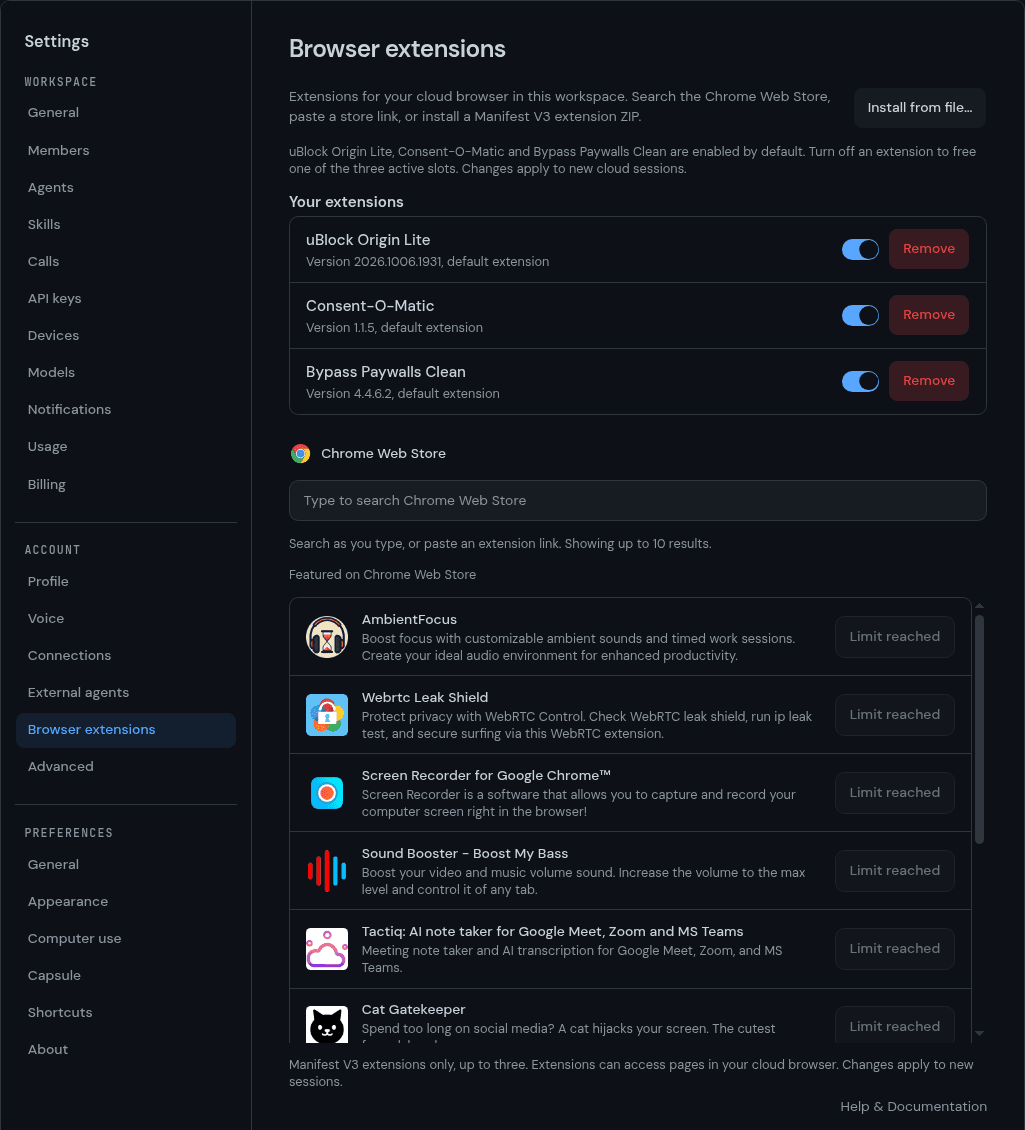
Default extensions
Nebula enables three packages for cloud browsing:
uBlock Origin Lite blocks ads and trackers.
Consent-O-Matic handles cookie consent banners.
Bypass Paywalls Clean changes supported sites' paywall behavior.
Open Settings → Account → Browser extensions to turn each extension on or off. Your choice persists and applies to new cloud browser sessions. Turning an extension off keeps its package saved and frees an active slot. Removing it deletes the package. Removed defaults are not automatically reinstalled.
Defaults use pinned releases with verified SHA256 hashes. Bypass Paywalls Clean comes from its maintainer's repository because it is not on the Chrome Web Store. Existing custom extensions stay enabled; defaults that would exceed the three active slots start disabled.
Install from the Chrome Web Store
Find an extension
Open Settings → Account → Browser extensions. The Chrome Web Store panel shows up to 10 featured extensions. Type an extension name to search automatically, or paste its Chrome Web Store link.
Install your choice
If all three active slots are occupied, turn off or remove a saved extension first. Check the result's name and description, then choose Install. Nebula downloads the store package and adds its name and version to your saved list.
Results include extension icons. Extensions known to use an unsupported manifest are greyed out with an explanation. Only Manifest V3 extensions are supported. Compatibility checks cannot guarantee every extension feature works in a cloud browser. An unavailable or incompatible package shows an error. Extensions can access pages in your cloud browser, so install extensions you trust. Installed packages do not update automatically; remove and reinstall an extension to get a newer store release.
Add a custom extension
Open browser extensions
Open Settings → Account → Browser extensions in the desktop app.
Get the Chromium package
Download an extension ZIP for Chromium. It must use Manifest V3, with manifest.json at the root of the ZIP.
Select the ZIP
Choose Install from file…, then select your package.
Check the saved extension
Wait for its name and version to appear in the list. Uploads that fail show an error on the page.
You can enable up to three extensions at once. Each ZIP must be no larger than 100 MiB. Turn off an extension before installing or enabling another when all three slots are in use.
Use your selection
The selection applies when Nebula starts a new cloud browser. Start a new browser task to use a changed selection. It does not change a browser session that is already running.
These extensions do not install into your computer's browser or a sandbox browser. Defaults apply only to cloud browsing. Custom extensions require cloud browsing while enabled; turn them off before choosing another browser engine.
Remove an extension
Choose Remove beside its name. Wait for the row to disappear, then start a new browser task. Removing it affects your cloud browser in this workspace. Disconnecting your browser profile also clears its extensions.
Related
Computer use: let agents work on your computer
Turn on computer use in Nebula desktop so agents can run commands on your computer. Choose what they reach, add it to a channel, and share it.
Nebula CLI
Run Nebula from your terminal. Install the nebula-ai CLI, sign in once, and use the full-screen app to chat, join calls, and drive your workspace.