
Agents and your channel's team
Create and manage specialist agents in Nebula channels. Tag agents, choose their tools and instructions, change the team and control who can use them.
Nebula runs every channel as its orchestrator. Set a channel's goal and Nebula hands each task to an agent on the channel's team, and proposes specialists when the work needs them.
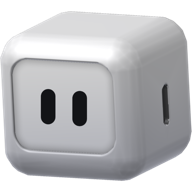 Nebula
- Prospect ResearcherFinds inbound leads and scores them against our ICP✕
- Launch CopywriterDrafts launch emails, landing page copy and social posts✕
Nebula, the orchestrator
Nebula is the orchestrator. Your workspace has one Nebula, and it orchestrates every channel. It answers in chat, proposes specialists and decides which agent on the team should take on each piece of work. It doesn't do task work itself: every task runs as an agent on the channel's team. Nebula manages its own model and skills, so you don't need to set anything up before it starts work. On desktop, click Nebula on the channel's team to open its page: its name and instructions stay Nebula's, and there you can change the Model the channel's tasks run on and its Team. Under Look you can restyle Nebula's face (Eyes, Shell and Light); only you see that, on that computer.
A new workspace starts with Nebula and no other agents. Nebula can propose specialists for recurring work or a broader domain and creates them when you agree. Work you ask for goes to the agent on the team that comes closest to it, even when the fit isn't exact. Only when the team is empty, or nobody on it could do the work, does Nebula get one: it adds a fitting agent from the workspace or creates one, then hands it the task. It may check with you first, and it doesn't create agents for work nobody asked for. In an Autonomous channel, its own check-ins add or create an agent only while the team is empty. Coding, or work on your own computer, goes to a coding agent such as Claude Code or Codex on one of your devices. You can also create one yourself or bring in an agent a teammate has shared. Nebula is always listed first on a channel's team, and you can't remove it.
The channel's team
Each channel has its own team. The team is the set of agents Nebula can hand work to in that channel, and the agents that answer when someone tags them there. An agent can be on the team in one channel and absent from another.
Open Channel settings and choose Agents. You'll see Nebula and every agent on this channel's team.
To add an agent that already exists, click the + (Add an agent) at the top of the Agents box beside the chat, or Add your first agent when the box is empty. The Add an agent dialog leads with creating one. Under that, Or add one of yours (or Or add one from your workspace) lists up to three agents that already exist, yours first, and Browse all opens every agent, under Yours and Made by others. Your own private agents aren't listed, here or when you create a channel: they already answer you in every channel. Click Add beside the one you want. The dialog stays open, so you can add several. Anyone in the channel can add an agent they made. Adding someone else's agent takes permission to manage the channel.
To take one off the team, choose Remove followed by the agent's name on its row in Agents. This is the X button.
Tap the faces at the top of the channel to open Members and agents.
Under Agent roster you'll see Nebula and the channel's team. Workspace agents that aren't on the team are listed below under All workspace agents. Type in Search agents to narrow them by name or description, then tap Add to roster to bring one in.
To take an agent off the team, remove it from the roster and confirm. The agent isn't deleted, and you can add it back at any time.
@mention an agent
When you tag an agent, it matters whether that agent is on this channel's team.
The agent answers for itself, in its own name, instead of Nebula answering for it. Work you tag it for runs as its own task, so it's never handed to a different agent.
The @ list offers every workspace agent you can see, the channel's team first, and marks the others joins this Channel when you send (on your phone, joins when you send). Your own private agents are marked private, only you can use it: they answer you without joining. Send, and the agent joins the team and answers, as long as you could add it yourself: you made it or can edit it, or you manage the channel, and everyone in the channel can already use it. Otherwise it stays off the team, and Nebula tells you and offers to add it. Your own private agent never needs this: it answers you wherever you tag it.
Each agent you tag gets its own turn and answers its own part, in its own reply, at the same time. If you give them different jobs in the same message, each takes only its part. Tag Nebula as well and it answers its part too, but calling it by name without the tag, as in "Nebula, get @Prospect Researcher on this", isn't a second ask. The same goes for a message that tags a person and an agent: the agent answers only if the message asks it to do something, and a message that just asks the person about the agent stays the person's.
Who answers your message
On desktop, a face just above the message box shows which agent will answer what you're about to send: the first agent your draft tags, or, in your Nebula DM, the agent you're already talking with, else Nebula. Hover it to see who, such as Prospect Researcher will reply. To post without anyone answering, click the small microphone-off button on the face's corner (Post without a reply). The face becomes a microphone-off button for that one message, and clicking it lets the agent reply after all. Outside your Nebula DM, a draft that tags no agent shows no face: the channel decides who answers, as usual. A reply in a task's thread goes to the agent running that task when it's meant for it.
On mobile, the face shows only in your Nebula DM, where Nebula answers every message.
When agents hand work to each other
An agent on the team can pass part of its work to another one by tagging it in its answer, such as "@Data Analyst pull last quarter's churn by plan". The tagged agent starts on it as its own task in the same conversation, and its answer lands under the one that asked for it. This works the same way for Nebula's own agents and for coding agents like Claude Code, and for the line a scheduled task's run posts in the channel: a tag there starts the tagged agent's task in a conversation of its own.
An agent that needs something only Nebula can do, such as creating an agent or adding one to the team, asks Nebula while it keeps working. Nebula does it in the channel and tells the task what it did. Any agent can also tag Nebula in its answer. A task can set up its own scheduled task when its work needs one. An answer with no tag is for you, and nothing follows it.
Only agents on the channel's team are started this way. When a tagged agent can't be started - it's off the team, can't take the work, or there aren't enough Nebula Credits - the channel says so by name. So that agents can't keep handing work back and forth on their own, they start at most six tasks after someone last wrote in the channel. Past that, the channel says "Agents have started 6 Tasks here since a person last wrote". Reply in the conversation to let them carry on.
Changing the team by asking
You can also ask Nebula to change the team. When you ask, it makes the change. When the idea is its own, it suggests the change and waits for your yes, and it asks before removing an agent. It won't add or remove an agent you didn't ask about.
Nebula, who can write the launch email for the upgrade shortlist?
Launch Copywriter could. Priya shared it with the workspace, but it isn't on this channel's team yet. Want me to add it?
Yes, add it.
Done. Launch Copywriter is on the q4-launch team now, so you can tag it here directly.
If any channel reader cannot access the agent, adding it requires sharing it with the workspace. Nebula asks first. On desktop the same question appears as Make accessible and add. An agent already accessible to every channel reader needs no wider sharing.
Create an agent by asking
Describe what you want an agent to do, and Nebula builds it. On desktop, click the + at the top of the Agents box, or click + Create agent in Channel settings → Agents. Finish the sentence that starts Make me an agent that and click Next. Its device under Runs on is a New cloud device unless you pick one, or choose Nebula chooses. Pick a model under Choose its model, or leave the workspace default, then click Create. This posts your request into the channel as an ordinary message. You can also just ask in the chat.
Make me an agent that researches each account on our upgrade shortlist and drafts a one-paragraph brief.
Created Prospect Researcher. It researches target accounts and writes a short brief for each one.
Prospect Researcher is on this channel's team and works on the channel's default device. Tag it whenever you want a brief.
When you ask for an agent, say what it should own and what good output looks like. The clearer the request, the better the agent Nebula builds.
A new agent picks up a few things from the channel where you create it.
| It inherits | What that means |
|---|---|
| The channel's team | It joins the team straight away when everyone in the channel can use it. An agent private to you doesn't join; it answers you in every channel anyway. |
| The default device | It works on the channel's default device, unless you pick another under Runs on when you create it. See Devices. |
| Who can use it | In a workspace-visible conversation in a shared channel, workspace members can use and edit it. In a private channel, Home or a people DM, conversation members at creation get access. An agent DM or a private task in a shared channel stays creator-only. Later membership changes do not automatically change this access. |
On your phone, tap the + beside Agent roster (New agent), then Create an agent, Connect an external agent or Create a website agent (see Website agents). An agent made there starts on a New cloud device and isn't on this channel's team yet, so add it from All workspace agents afterwards.
On desktop, Or set one up yourself offers four kinds: Agents (Claude Code, Codex, Gemini, an MCP server or your own API), Apps, Websites and Accounts. Want an agent that uses one app on your computer, such as Figma, Notes or Excel? Pick Apps. See App agents.
Already use Claude Code, Codex or another coding CLI? You can bring it in as an agent instead. See Coding agents.
Website agents
An agent can work inside websites you approve, instead of on a computer, using a private cloud browser. On desktop, click + Create agent and choose Websites — "Approved websites, signed in, in a private cloud browser" — and a three-step walk opens:
- Websites — type a site and press Add for each one it may open, sign-in pages included. Only
https://addresses are accepted (http://only for a local server), the same site is counted once, and the list holds 20. - Sign in — optional. Open sign-in opens your cloud browser profile to sign in as you normally would, then I've signed in keeps it. Your password goes to the website, never to Nebula or the agent. Choose Skip for now if the sites need no account; the agent asks you when it meets a login.
- Review — name it and check that it Runs in your Nebula cloud browser, your own profile there and not the browser on this computer. Create agent makes it, and it joins your Home roster.
On your phone, open New agent and tap Create a website agent - "Uses the websites you approve, signed in as you, in your private cloud browser." The same three steps follow: add each site under Websites, then tap Sign in beside any site that needs an account. Your cloud browser opens on that site full screen; sign in, and once you see your account tap Done, and Nebula keeps you signed in. Skip for now works here too. On Review, name the agent and tap Create agent.
A website agent opens only the sites on its list, including their redirects, frames and pop-ups. It can't read your files or control this computer, and it has no other tools: it browses, and asks you a question when it needs an answer. It always runs in the cloud browser, so there is no device to choose and it can't be moved onto one later.
The agent window
Click an agent on the channel's team, or its face on any message in the chat, to open its settings beside the chat. You can pop them out into their own window. On your phone, tap the agent to open the same settings, split across Overview, Tools, Jobs and Brain.
Its avatar, name and description, the Device where it runs and stores files, and Access (who can use it). The Model row reads Default — each Task takes its Channel's model until you pin a model to the agent. Model choices are explained on Models.
Toolkits shows what this agent can use. Connections shows the accounts it can act through, with a shortcut to manage your connections.
Skills lets you read and edit each skill the agent knows. Instructions is what it follows, and its description is written from them. Memory shows what it has learned. Click the X on a memory to make the agent forget it immediately. Files an agent keeps for later runs live in its Agent Storage.
Every agent in your workspace
A channel's team is only part of the picture. On desktop, Settings → Workspace → Agents lists every agent you can use in the workspace, who made it, and what it runs on. Filter by Yours or Teammates, search by name or maker, and click Open to go to an agent's settings. From a channel, Manage agents in Channel settings → Agents takes you there.
Delete an agent
Taking an agent off a team keeps it. Deleting it removes it from the workspace for everyone, and it can't be undone. Click the trash icon on its row in Settings → Workspace → Agents, or open the agent and choose Delete under Danger zone on its Identity tab.
The confirmation lists any jobs that run on the agent, because they're turned off with it. You can delete an agent you made or one you've been given edit access to. Nebula, and a channel's own agent, can't be deleted.
When an agent gets it wrong
Agents make mistakes. Pick the fix that matches the problem.
Reply in the task's thread to correct it or change direction (or, for a task with no conversation, type in its Continue this task… box). See Tasks.
Hover the state icon on the task's card and choose Stop this task.
In the agent window, open Brain → Memory and click the X on the memory that's wrong.
In the agent window, open Brain → Skills to read or edit the skill it followed.
Remove it from the channel's team. The agent isn't deleted, and you can add it back later.
Tell Nebula what went wrong and ask it to adjust the agent.
Private agents, and sharing one
An agent is either private to its owner or shared with the workspace. A private agent never joins a channel's team, and it doesn't need to: it answers you in every channel, so tag it anywhere. Nobody else can add it to a channel. To change who can use one, open Identity, click Manage on the Access row, and pick a General access level.
Private doesn't mean hidden. On your phone, another member's private agent shows with its own name and face on its messages, in a thread's faces and on the line that says it's working. Tap it on your phone, or click it on desktop, for a read-only card: its name, handle and description, Private agent · belongs to its owner, and a line saying only its owner can use it or change its settings. Its instructions, tools and settings stay with its owner.
Only you, plus anyone you add by name as a viewer or editor.
Everyone in the workspace can see the agent and send it work in channels where it's on the team.
Everyone in the workspace can also change the agent's settings.
An agent that runs on your own computer stays private: you can't share it with the workspace, and only you can run it. A website agent is private the same way — only its owner can run it, and it can't be shared. Nobody can add it to a channel other people can read, you included. A coding agent or another external agent there answers you in every channel instead. An app agent works in your Nebula DM. See Agents that live on your computer.
Not sure which agent should handle something? Ask Nebula in the channel. It knows who's on the team and can suggest who to add. For anything else, email support@nebula.gg.
Common questions
Related
Put Nebula to work
Get Nebula on your computer or phone, then create your first channel and set its goal.
Channels in Nebula
A Nebula channel is where a goal gets done. Create a channel, see when Nebula replies, pick which agents work in it, and keep its calls and tasks together.
Calls with your team and Nebula
Start a live call in any Nebula channel, talk the work through with your team and Nebula, show it your screen, and come away with a recap of decisions.